...
For the list of available functions, please refer to "Supported Functions" page.
| Description | Example |
|
|---|---|---|
|
| |
|
| |
|
| |
|
| |
|
| |
|
| |
|
| |
|
주의) |
|
|
|
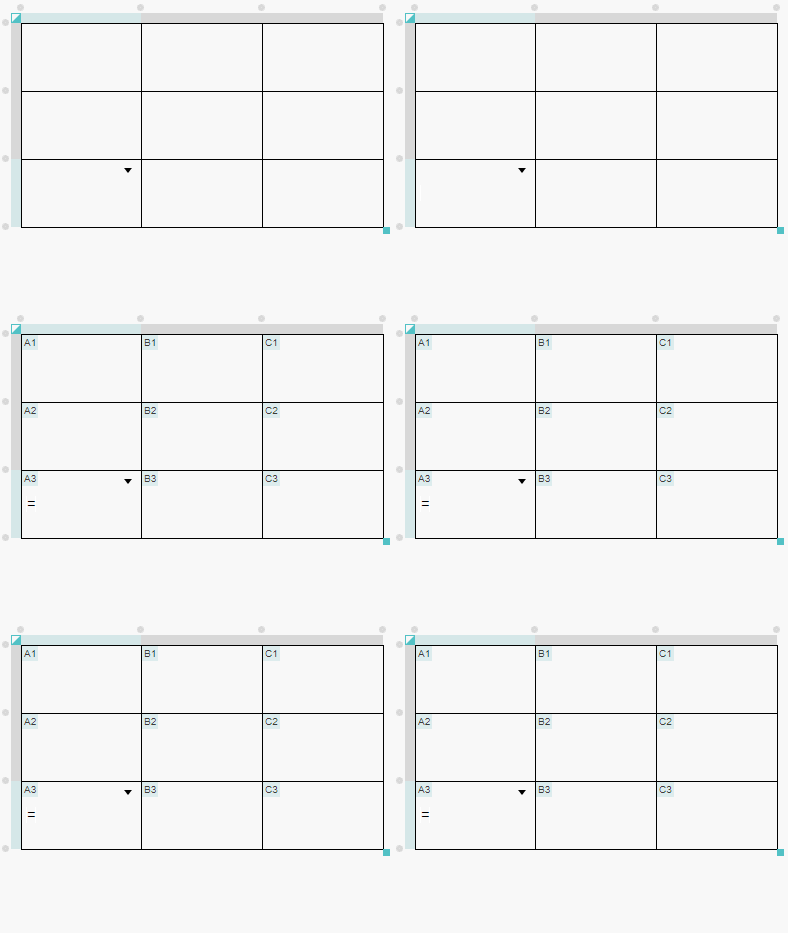

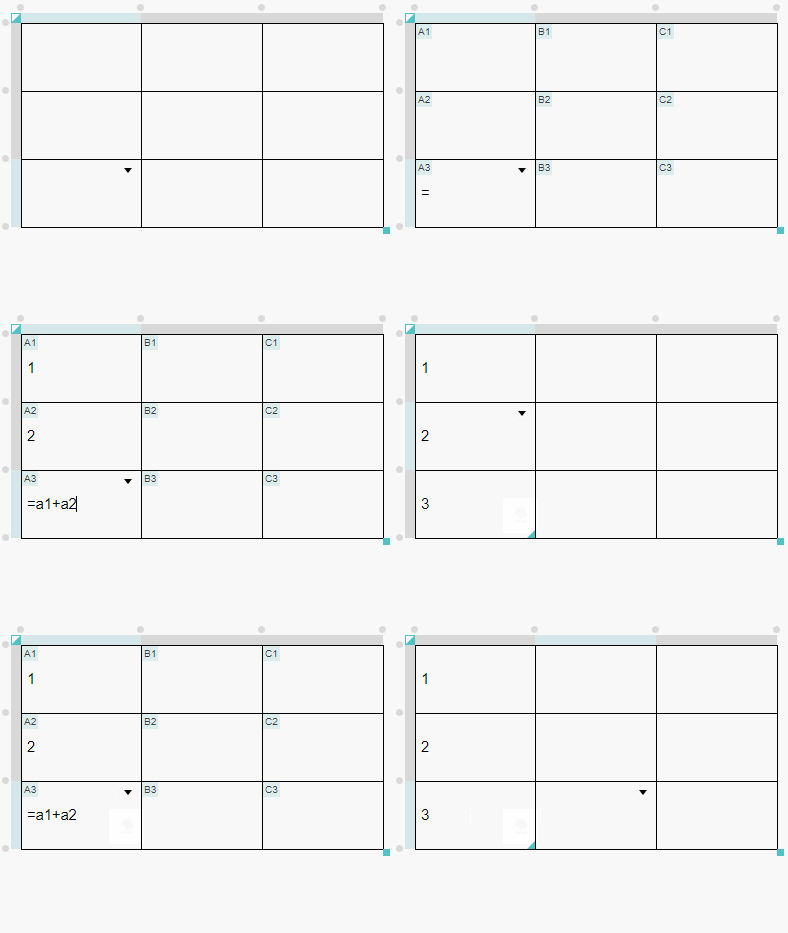
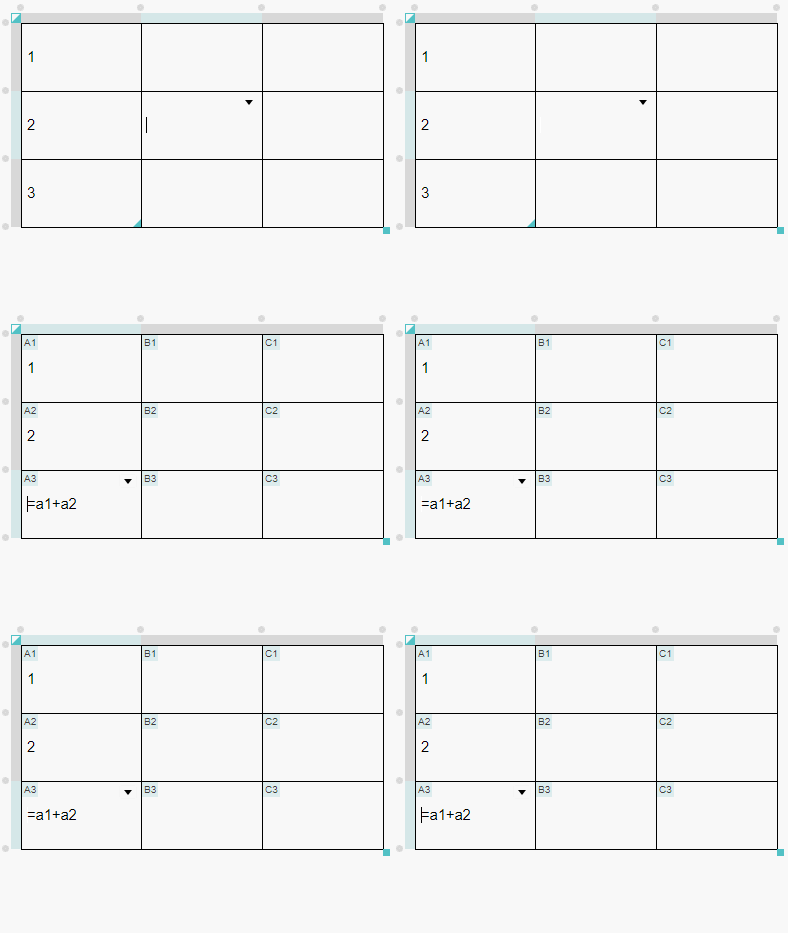
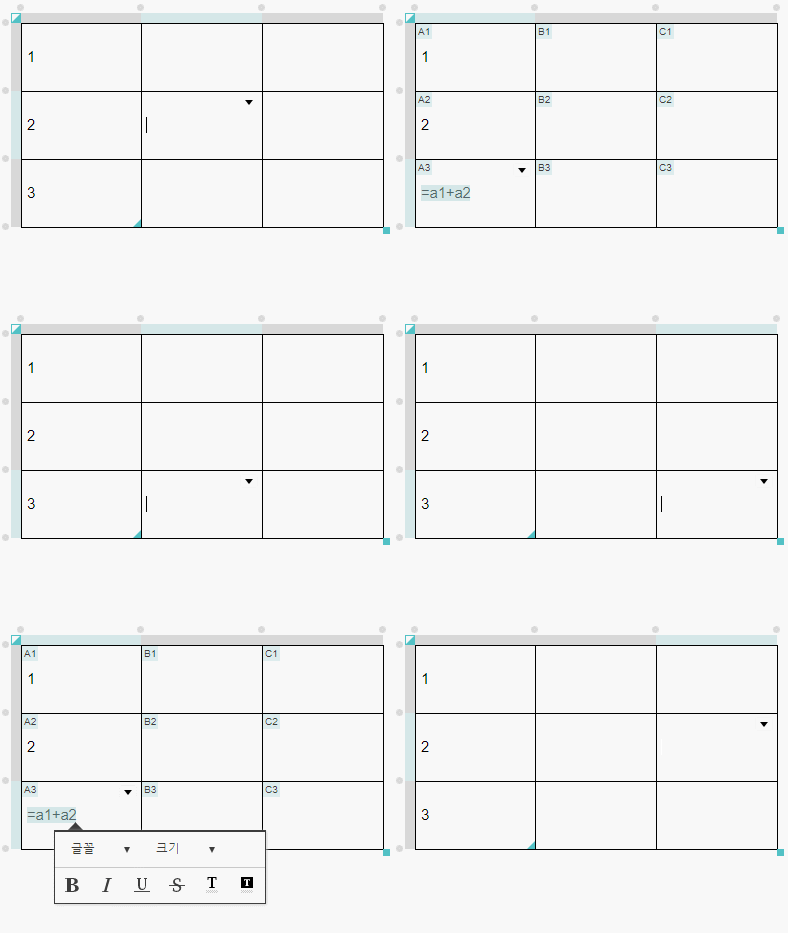
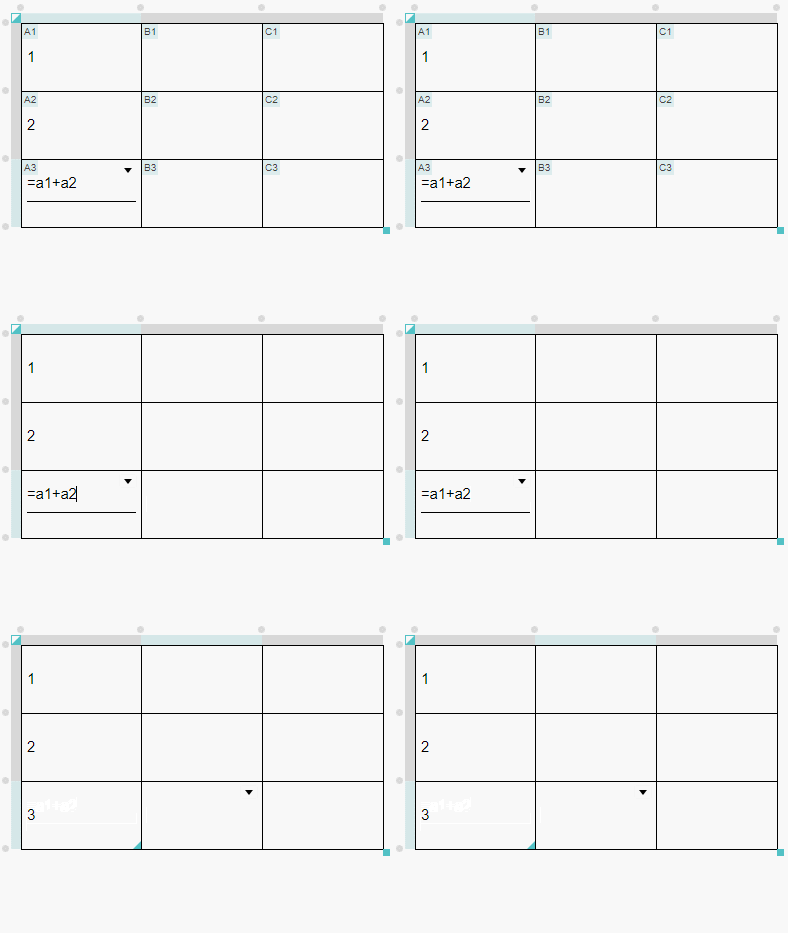
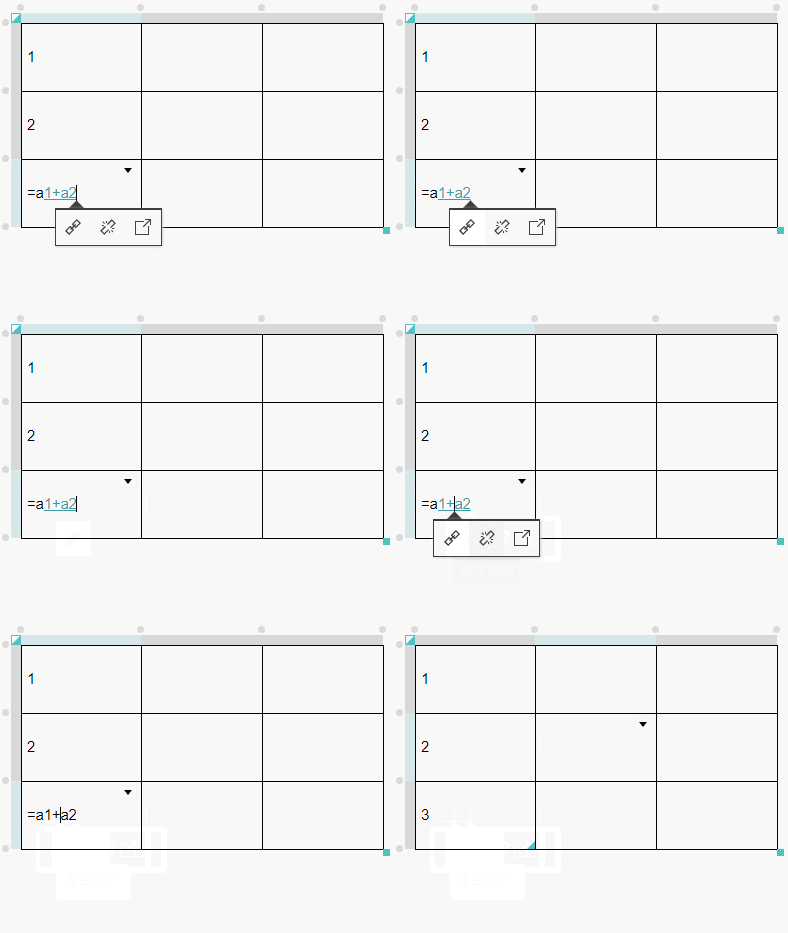
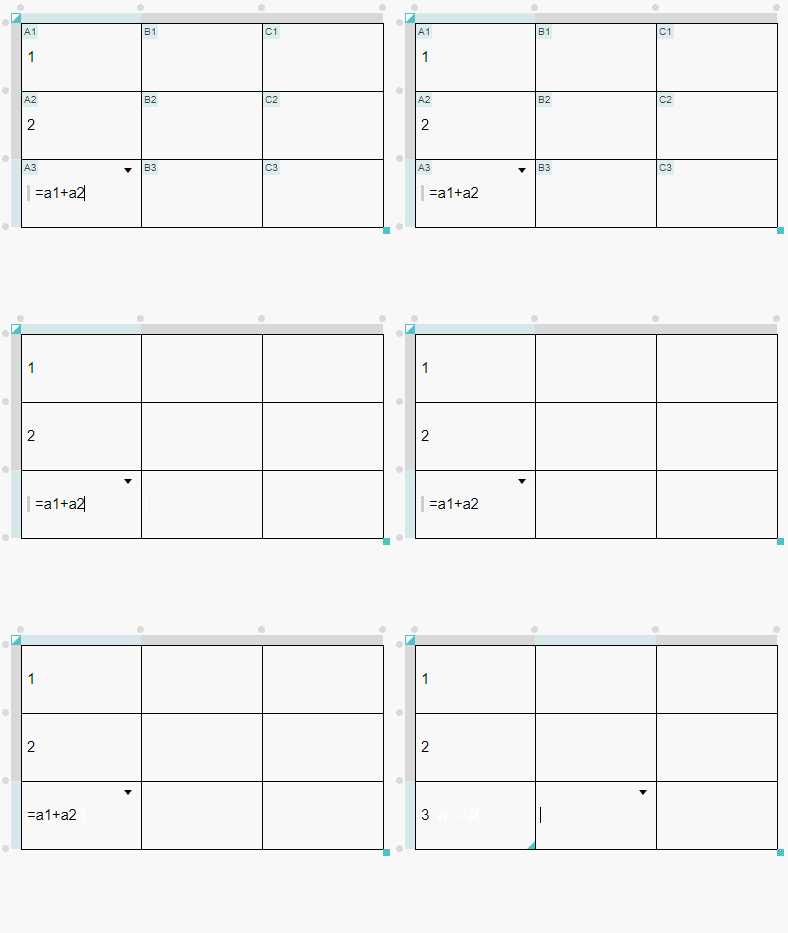

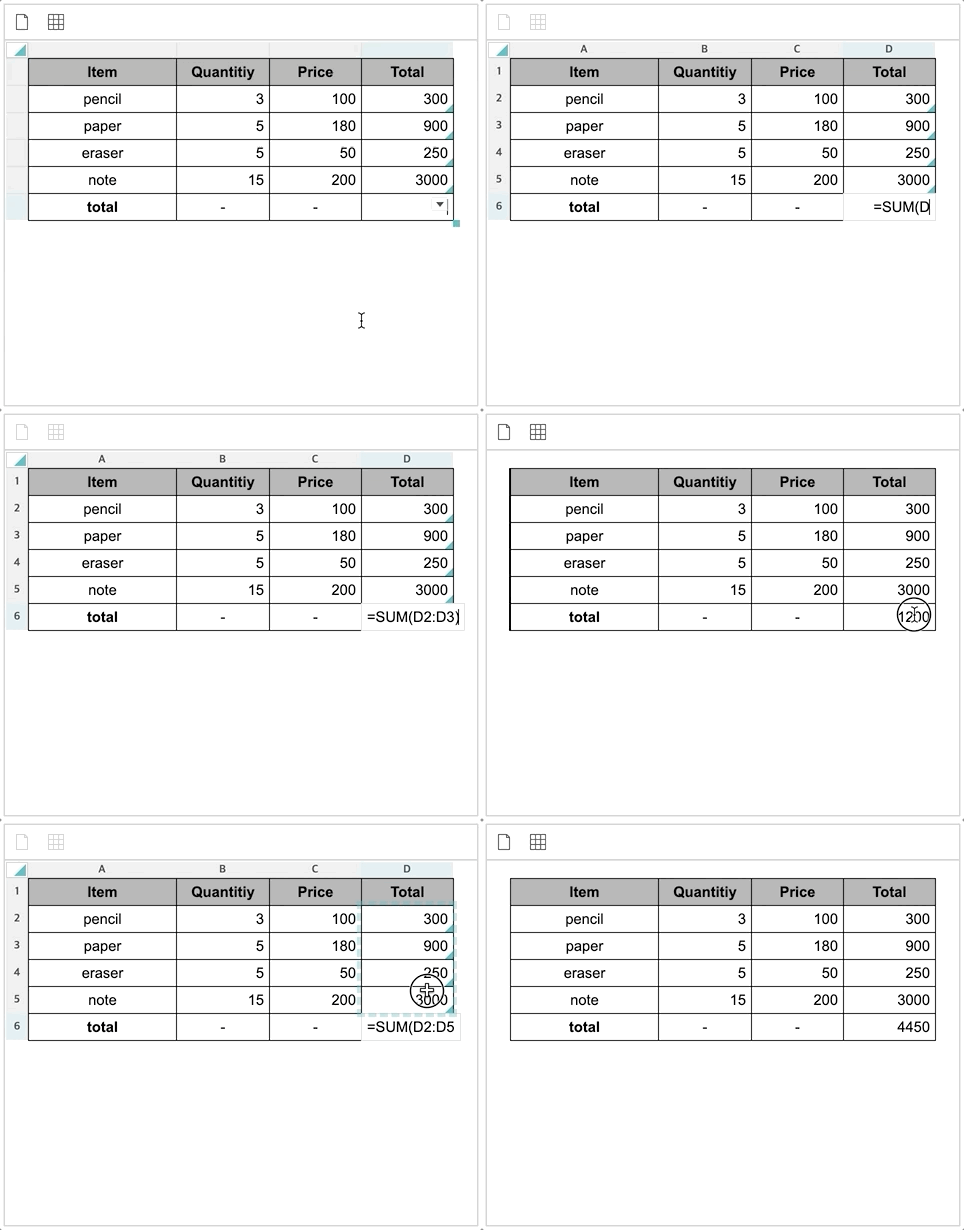
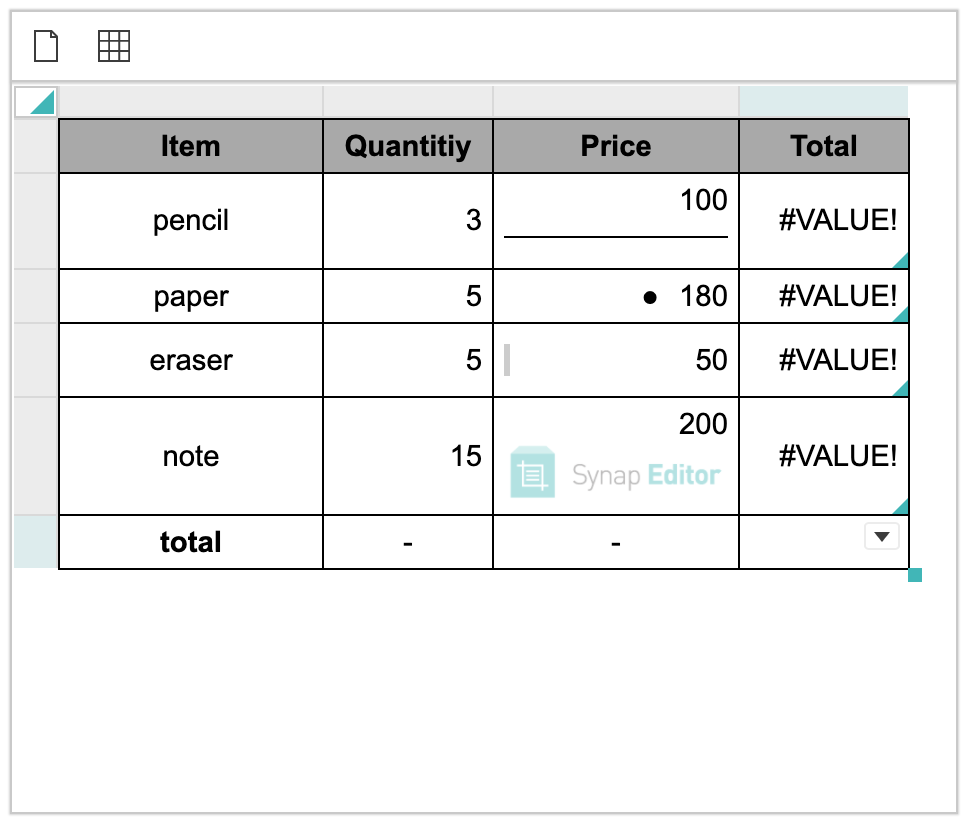
Experiencing
| HTML |
|---|
<!-- external modules -->
<script type="text/javascript" src='https://www.synapeditor.com/se/resource/synapeditor/externals/formulaParser/formula-parser.min.js'></script>
<script type="text/javascript" src='https://www.synapeditor.com/se/resource/synapeditor/externals/SEDocModelParser/SEDocModelParser.min.js'></script>
<script type="text/javascript" src='https://www.synapeditor.com/se/resource/synapeditor/externals/SEShapeManager/SEShapeManager.min.js'></script>
<script type="text/javascript" src='https://www.synapeditor.com/se/resource/synapeditor/externals/codeMirror/codemirror.min.js'></script>
<script type="text/javascript" src="https://www.synapeditor.com/se/resource/synapeditor/externals/codeMirror/xml.min.js"></script>
<link rel='stylesheet' href='https://www.synapeditor.com/se/resource/synapeditor/externals/codeMirror/codemirror.min.css'>

<!-- Synap Editor -->
<script src='https://www.synapeditor.com/se/resource/synapeditor/synapeditor.config_en.js'></script>
<script src='https://www.synapeditor.com/se/resource/synapeditor/synapeditor.min.js'></script>
<link href='https://www.synapeditor.com/se/resource/synapeditor/synapeditor.min.css' rel='stylesheet' type='text/css'>

<div style="background-color: #ffffff; width:99%; height:500px;">
        <div id="synapEditor">
        <table data-template-id="1" style="width: 540px; height: 270.406px;>
            <colgroup>
                <col style="width: 135px;">
                <col style="width: 135px;">
                <col style="width: 135px;">
                <col style="width: 135px;">
            </colgroup>
            <tbody>
                <tr style="height: 135.203px;">
                    <td style="padding: 5px; border-width: 1px; border-style: solid; border-color: rgb(0, 0, 0);">
                        <p style="margin: 0px;">
                            <span>1</span>
                        </p>
                    </td>
                    <td style="padding: 5px; border-width: 1px; border-style: solid; border-color: rgb(0, 0, 0);">
                        <p style="margin: 0px;">
                            <span>2</span>
                        </p>
                    </td>
                    <td style="padding: 5px; border-width: 1px; border-style: solid; border-color: rgb(0, 0, 0);">
                        <p style="margin: 0px;">
                            <span>3</span>
                        </p>
                    </td>
                    <td data-formula-text="sum(a1:c1)" style="padding: 5px; border-width: 1px; border-style: solid; border-color: rgb(0, 0, 0);">
                        <p style="margin: 0px;">
                            <span>6</span>
                        </p>
                    </td>
                </tr>
                <tr style="height: 135.203px;">
                    <td style="padding: 5px; border-width: 1px; border-style: solid; border-color: rgb(0, 0, 0);">
                        <p style="margin: 0px;">
                            <span>1</span>
                        </p>
                    </td>
                    <td style="padding: 5px; border-width: 1px; border-style: solid; border-color: rgb(0, 0, 0);">
                        <p style="margin: 0px;">
                            <span>2</span>
                        </p>
                    </td>
                    <td style="padding: 5px; border-width: 1px; border-style: solid; border-color: rgb(0, 0, 0);">
                        <p style="margin: 0px;">
                            <span>3</span>
                        </p>
                    </td>
                    <td data-formula-text="max(a2:c2)" style="padding: 5px; border-width: 1px; border-style: solid; border-color: rgb(0, 0, 0);">
                        <p style="margin: 0px;">
                            <span>3</span>
                        </p>
                    </td>
                </tr>
            </tbody>
        </table>
		</div>
</div>
<script>
		const config = Object.assign(synapEditorConfig, {
			"editor.license":"/se/resource/license.json",
			"editor.toolbar": ["new","table"],
			"editor.menu.show": false,
			"editor.import.maxSize": 10485760,
		    "editor.import.api": "/se/importDoc",
		    "editor.upload.maxSize": 3145728,
		    "editor.upload.image.api": "/se/uploadFile",
		    "editor.upload.video.api": "/se/uploadFile",
		    "editor.upload.file.api": "/se/uploadFile"
			});
		window.editor = new SynapEditor("synapEditor", config, document.getElementById('synapEditor').innerHTML);
</script> |
...