Image Text Extraction Plugin (OCR)
Release 2.17.0 and above.
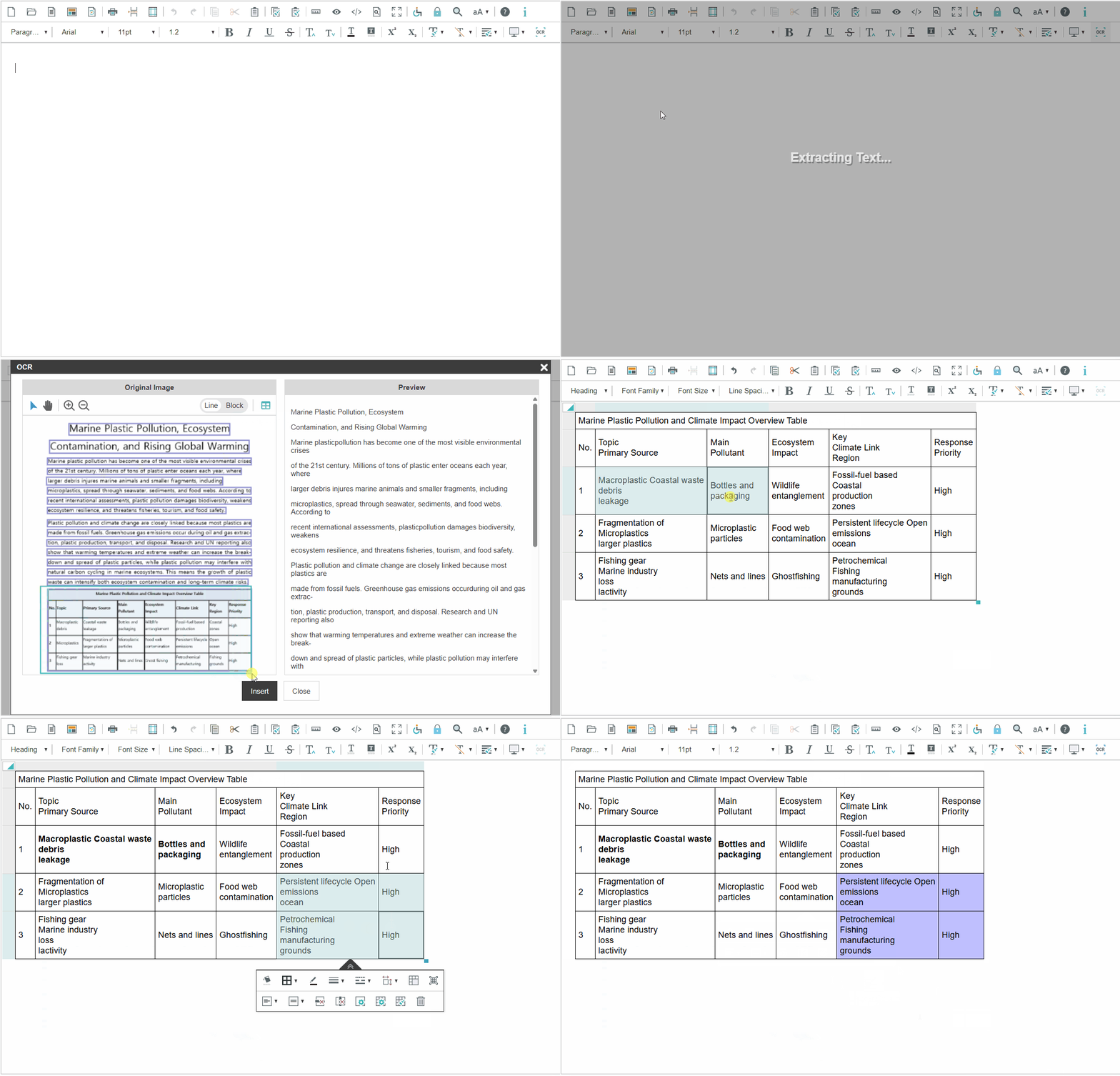
When using the 'Image Text Extraction' plugin, you can easily extract character text and table data contained in various files (jpg, png, pdf) and insert them into the editor for editing.
It is useful when you need to utilize text or information contained in images, such as when creating documents.
How to Use
Loading Plugin Files
<!-- The SynapEditor object must exist for this to take effect,
     so include after the editor script files. -->
<script src="url of ocr.min.js"></script>
<link rel="stylesheet" href="url of ocr.min.css">
Adding Buttons to the Toolbar
Using the plugin name 'ocr', you can add a button to the toolbar area or quick insert.
Add to Toolbar

// synapeditor.config.js
//...
'editor.toolbar': [
    // OCR button
    'ocr',
    //...
],
// ...
Add to Quick Insert

// synapeditor.config.js
//...
'editor.quickInsert': [
    // OCR button
    'ocr',
    //...
],
// ...
Plugin Settings
You must set the values to use the OCR API in the editor configuration object.
URL, API Key Settings
Sets the URL and API Key of the API to send requests to. URL is a required value.
// synapeditor.config.js
//...
'ocr.config': {
    url: 'https://ailab.synap.co.kr/sdk', // Available during the promotion period.
    apiKey: 'issued API key'
}
// ...
OCR Pro Settings
"directApiKey" is an option that sets whether to pass "apiKey" as-is (without encryption) when making OCR API requests.
// synapeditor.config.js
//...
'ocr.config': {
    url: 'OCR pro url',
    apiKey: 'issued API key',
    directApiKey: true // default: false
}
// ...
Dialog Height Settings
Release 3.0.2401 and above.
Sets the height of the OCR dialog.
The minimum height is 300px.
// synapeditor.config.js
//...
'ocr.config': {
    ...
    size: { 'height': '600px' },
}
// ...
Shortcuts
| Windows | Mac | |
|---|---|---|
| Select mode | V | V |
| Move mode | H | H |
| Temporary move mode | Space | Space |
| Zoom in image | Ctrl + Mouse Wheel Up | Cmd + Mouse Wheel Up |
| Zoom out image | Ctrl + Mouse Wheel Down | Cmd + Mouse Wheel Down |